Verifying your Google Business Profile (GBP) is one of the most important steps for any local business that wants to appear on Google Maps and in local search results. Without verification, you can’t fully manage your profile, respond to reviews properly, post updates, or rank well in the local pack. In 2026, Google has made the verification process more strict to reduce fake listings, which is why businesses sometimes face delays or get asked for video proof.
This complete step-by-step guide explains how to verify your Google Business Profile smoothly and avoid common mistakes.
What Does “Verification” Mean in Google Business Profile?
Verification is Google’s way of confirming that your business is real and that you are the rightful owner or manager. Once verified, you can:
- Appear on Google Maps and local search
- Update business hours, phone number, and website
- Add services and products
- Upload photos and posts
- Reply to reviews and messages
- Access insights like calls, clicks, and direction requests
In short, verification is the foundation of local SEO.
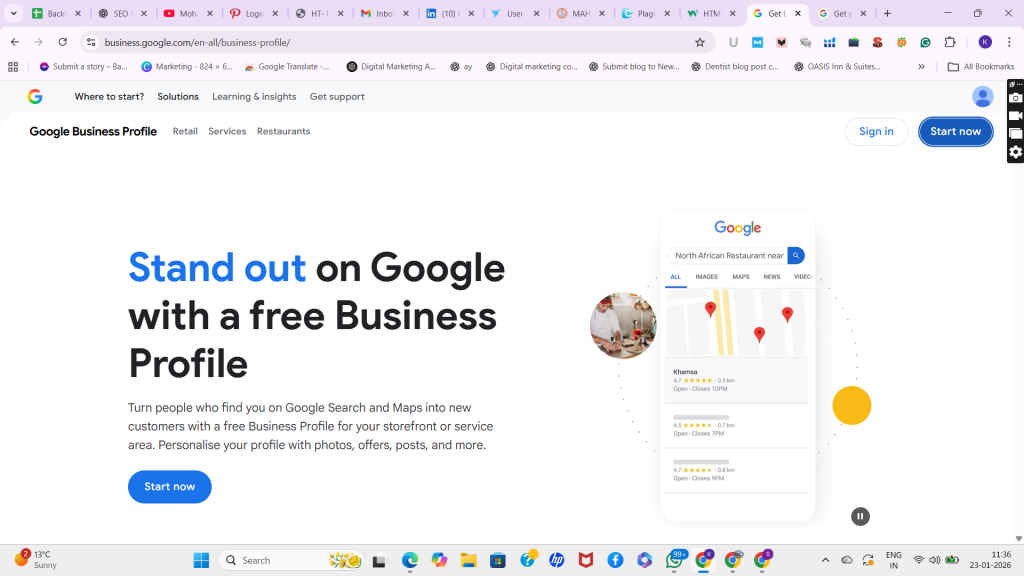
Step 1: Sign In With the Correct Google Account
Start by signing in to the Google account you want to use to manage the profile. Ideally, use a business account rather than a personal shared one. Then search your business name on Google. If your listing exists, you may see options like “Own this business?” or “Claim this business.” Click it to begin.
If your business is not listed yet, you can create a profile by entering your business name, category, address or service area, phone number, and website.
Step 2: Create or Claim Your Business Profile
If the profile already exists:
- Choose Claim and request access
- If someone else manages it, Google will guide you to request ownership
If creating a new profile:
- Enter the exact business name (no extra keywords)
- Select the best primary category
- Add address (only if customers visit you) or choose service area
- Add contact number and website
Make sure details match your real-world business information.
Step 3: Click “Verify Now” to Start Verification
Once your profile is created or claimed, you will see “Verify now” in your Google Business Profile dashboard. Click it. Google will show the verification method available for your business. In 2026, different businesses get different methods, so don’t worry if you don’t see the same option as someone else.
Step 4: Choose the Available Verification Method (2026 Options)
1) Phone or SMS Verification (Fastest)
If Google offers phone verification, it will send a code to your business phone number. Enter the code to verify instantly. This method is quick but not available for all businesses.
2) Email Verification
If email verification is available, Google sends a code to your registered email. Enter the code in your GBP dashboard. This is also fast and simple.
3) Postcard Verification (Common)
Google may mail a postcard to your business address containing a verification code. This can take around 5–14 days depending on your area. Important: do not change your business name, address, or category while waiting for the postcard, because Google may cancel or delay verification.
4) Video Verification (Very Common Now)
Video verification is increasingly common in 2026. Google asks you to record a short video proving your business is real and located where you claim. Typically, your video should show:
- Your business signage (name visible)
- Nearby street sign or building name (location proof)
- Entry/office/shop interior
- Proof you can access the business (unlocking a door, using POS, showing tools/workspace)
Many verifications fail because videos don’t clearly show signs and access proof, so record carefully.
5) Live Video Call (Sometimes)
In some cases, Google offers live video verification with a support representative. You’ll be asked to show the same proofs as video verification, but live.
Step 5: Wait for Approval and Confirm Verification Status
Approval time depends on the method:
- Phone/SMS/Email: usually immediate
- Postcard: after code entry, may take hours to 1 day
- Video verification: can take from a few minutes to several days
Once verified, your GBP dashboard will show full access, and your profile will become active on Google Maps.
Step 6: What to Do Immediately After Verification
After verification, your next goal is to make your profile strong and trustworthy. Do these actions:
- Confirm business name is real and matches signage
- Set correct primary and secondary categories
- Add services and service descriptions
- Add business hours including holidays
- Upload 10–20 real photos (office, team, work)
- Add website link and appointment link
- Start requesting reviews from customers and reply to every review
These steps not only improve trust but also help your profile rank faster in Google Maps.
Common Verification Problems and Fixes
If you don’t get a verification option, try waiting 24–48 hours and ensure your profile details are complete. If the code doesn’t arrive, re-check the phone/email and avoid multiple repeated attempts quickly. If postcard verification expires, request a new postcard and avoid editing key details while waiting. If video verification gets rejected, record again and make sure your signage, location proof, and access proof are clearly visible.
Final Thoughts
Verifying your Google Business Profile in 2026 is essential for appearing in Google Maps and growing locally. The process is straightforward if your business information is accurate and consistent. Once verified, focus on building trust using photos, services, reviews, and active profile updates. A verified and well-optimized profile is one of the fastest ways to generate calls and leads from local searches.
If you want, tell me your business type (service area or physical office) and I’ll suggest the best verification method and exactly what to show in video verification for quick approval.
FAQs: Google Business Profile Verification (2026)
1) Why do I need to verify my Google Business Profile?
Verification confirms you own/manage the business. It helps your business appear on Google Maps, allows you to edit details, post updates, reply to reviews, and improve local rankings.
2) How long does Google Business Profile verification take in 2026?
It depends on the method: phone/email is often instant, postcard can take 5–14 days, and video verification may take a few minutes to a few days.
3) Which verification methods are available in 2026?
Google may offer phone/SMS, email, postcard, video verification, or live video call. The available method depends on your business type, category, and account history.
4) Why is phone or email verification not showing for my business?
Google doesn’t offer all methods to every business. If you don’t see phone/email options, you may need to verify via postcard or video.
5) What should I show in video verification?
Show business signage, nearby street/building for location proof, your entrance/office interior, and proof you manage the business (unlocking door, POS system, tools, workspace).
6) Can I edit business name or address while waiting for postcard verification?
It’s not recommended. Editing key details like name, address, or category can cancel or delay verification.
7) What if my postcard verification code doesn’t arrive?
Wait the estimated time, then request a new postcard. Ensure your address is correct and avoid making major profile edits during the waiting period.
8) Why was my video verification rejected?
Common reasons are unclear signage, missing location proof, not showing access/management proof, shaky video, or mismatch between video details and profile address/name.
9) What should I do after verification to rank faster on Google Maps?
Add correct categories, services, business hours, photos, website link, posts, and start collecting reviews. Keep your NAP consistent across your website and directories.
10) Can a Google Business Profile be suspended during verification?
Yes, if your profile violates guidelines (keyword stuffing in name, fake address, ineligible category). Use real business details and ensure consistency to avoid suspension.